
WhatsApp Status Saver now works in your browser
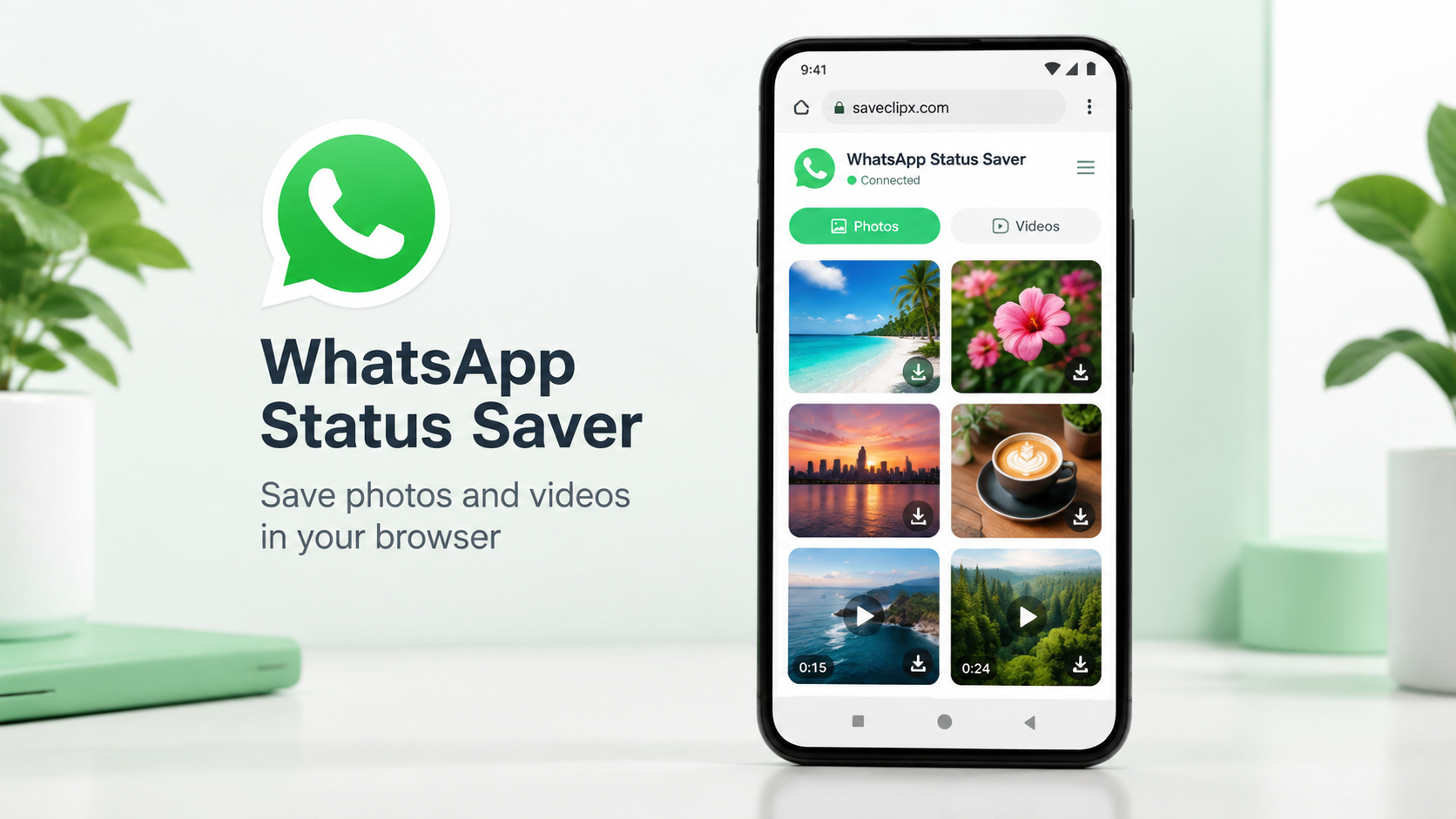
SaveClipX is the first video downloader to make a browser WhatsApp status saver actually work, now live on mobile. Connect your viewed status folder, browse photos and videos, and save copies without installing a separate saver app. Desktop support is coming soon.
A real browser experience, not a download promise
We made browser based status saving work. SaveClipX brings a status gallery to the same website you use for public video downloads, with remembered folder access and automatic refresh. This release is for supported Android phones only. Desktop support is coming soon.
Open the WhatsApp Status Saver to get started. It reads statuses you have already watched and that WhatsApp has stored on your phone. It does not retrieve private statuses by phone number, connect to your WhatsApp account or bypass anyone's privacy settings. Here is the complete feature list.
1. Save statuses directly in your mobile browser
You do not need to install a separate status saver app or browser extension. Open SaveClipX on a supported Android phone and use the gallery in your browser. No SaveClipX account or WhatsApp sign in is required.
The source is the status folder on your phone, not an online link. Watch the status in WhatsApp first so its media is available locally, then return to the saver. Your phone and browser must allow access to the selected folder.
2. Connect your status folder with read permission
Tap Connect status folder and select .Statuses. The browser asks you to allow read access before SaveClipX can show its photos and videos. This is a connection to the folder you choose, not unrestricted access to your phone.
The initial folder selection is required. A website cannot silently locate or open WhatsApp's protected files. Once connected, you can keep using the same folder rather than selecting each status individually.
3. Remember the folder after a page refresh
The saver remembers the selected folder connection locally in this browser on your device. Refreshing the page does not deliberately clear it. When the browser still grants access, the saver restores the connection and reloads the available statuses.
This remembers folder access, not permanent copies of your photos and videos. Clearing the website's stored data removes the saved connection. Using another browser or phone also means connecting again.
4. Resume access without finding the folder again
If the browser remembers the folder but needs permission again, the saver displays Resume folder access. Tap it and allow read access to reconnect without navigating through the storage folders again.
A remembered folder is not a promise of permanent permission. If the folder has moved, is no longer accessible or cannot be restored by your browser, you may need to select it again.
5. Automatically check for newly viewed statuses
With a folder connected, the saver checks for changes about every two seconds while the page is visible. It also checks when you return to the page from WhatsApp or bring the browser back into focus.
Watch another status in WhatsApp, then return to SaveClipX. Once WhatsApp makes its file available in the connected folder, it can appear in your gallery without another folder selection. This is not background monitoring while the page is closed, and files that WhatsApp has not stored cannot be discovered.
6. See clear restoring and syncing feedback
A spinner and status message tell you when the saved folder is being restored or its files are syncing. Once a connected folder scan finishes, the page shows Folder synced.
This feedback helps distinguish loading from an empty gallery. The indicator is a sync status, not a percentage estimate or a guarantee that every phone will finish within a fixed number of seconds.
7. Load the gallery progressively
The saver shows statuses as their previews become ready instead of waiting for every file to finish loading. Photos are prepared first, while videos are processed in small groups. Existing previews are reused during later checks when their files have not changed.
This reduces unnecessary repeat work and lets you browse available items sooner. Large videos, many files, storage speed and browser permissions can still affect how quickly the gallery fills.
8. Browse photos and play videos before saving
The gallery displays photo previews and video players in a mobile friendly grid. Each item has a Photo or Video label, its size in MB and separate save and share controls.
Videos include playback controls so you can inspect a status before keeping a copy. Preview playback depends on whether your browser supports the file's format. The gallery only contains files available in the folder or selection you have allowed it to read.
9. Filter All, Photos and Videos
The All view brings your available statuses together. Tap Photos to browse just the pictures or Videos to focus on clips. Counts beside the filters show how many items are available in each category.
The filters change what you see, not the files in WhatsApp's folder. Switching views does not delete or move statuses. If a category is empty, the gallery tells you there are no items of that type.
10. Save an individual status
Use the download icon beneath a photo or video to hand that file to your browser for saving. You can keep only the items you want without downloading the whole gallery.
After the save action, the icon changes to a check mark for that item in the current gallery. This records that the browser received the download request, not proof that a file has finished writing to storage. Your browser controls the destination and any download prompts.
11. Save all loaded statuses
Tap Save all to send each status in the loaded gallery to the browser for saving. This includes all loaded items, even when you are currently viewing only the Photos or Videos filter.
The files are saved individually, not bundled into a ZIP. Some browsers ask permission for multiple downloads or limit repeated saves, so allow the requests when prompted and check your browser's downloads.
12. Share a status using your phone's sharing options
The share icon beside an item opens your phone's sharing options when the browser supports sharing that file. You choose the destination from the apps your phone offers.
If file sharing is unavailable, the control falls back to saving the item so you can share the saved copy yourself. SaveClipX cannot confirm delivery to another person. Only save or share statuses you own or have permission to keep.
13. Separate WhatsApp and WhatsApp Business connections
The app selector lets you choose WhatsApp or WhatsApp Business. Each choice has its own remembered folder connection, so you can connect the correct status folder for each app.
Switching apps clears the displayed gallery and filters before reading the matching folder. This keeps the two selections distinct. The Business folder option is included, although a real device Business folder test is still outstanding.
14. Follow illustrated folder instructions
The saver includes pictures showing where to find the folder. For WhatsApp, the usual location is Internal storage, then Android, media, com.whatsapp, WhatsApp, Media and .Statuses. For WhatsApp Business, use Android, media, com.whatsapp.w4b, WhatsApp Business, Media and .Statuses.
If .Statuses is not visible, look for Show hidden files in your file picker. On older phones, the standard app's path may start directly at WhatsApp, then Media. The guide changes with the selected app. If your phone blocks the folder entirely, the website cannot override that restriction.
15. Choose accessible files when folder connection is unavailable
The Choose files instead option lets you select status photos and videos your phone makes accessible. Browsers without direct folder connection may also offer a folder selection through their file picker.
This fallback does not provide the same live connection as Connect status folder. A one time file selection cannot automatically discover newly viewed statuses, so you must select the new files again. On phones that hide the original folder, you may need to copy the files into an accessible location first.
16. Refresh, change or disconnect your folder
The refresh icon requests a new check of the connected folder. Change status folder lets you choose a different location. The disconnect icon forgets the saved folder connection and clears the gallery.
If a remembered folder has not reconnected yet, Forget saved folder removes it. These controls do not delete the original WhatsApp statuses or copies you previously saved. They let you manage which folder the website can read.
17. Keep status media on your phone
Photos, videos and their filenames are not uploaded to SaveClipX or sent to analytics. The browser reads the files locally to generate previews, save copies or share a selected item through the phone's own sharing options.
The remembered connection is stored locally on the device, not as an online media backup. If WhatsApp removes an old status from its folder, the saver cannot restore it unless you already kept your own copy.
How to save a status video on Android
First, open WhatsApp and watch the status you want. Next, open the browser status saver, choose WhatsApp or WhatsApp Business, and tap Connect status folder.
Follow the illustrated folder path, select .Statuses, tap Use this folder and allow read access. Wait for the syncing indicator and browse the gallery as the previews appear. Use the save icon for one item or Save all for every loaded status.
After watching more statuses, return to the connected page. It checks the folder again while visible. If the browser requests renewed access, tap Resume folder access and Allow.
Mobile only for now, desktop support is coming soon
This release is for supported Android phones. Browser folder support alone does not guarantee that a phone permits access to WhatsApp's status folder. The current approach cannot read that folder on iPhone because iOS does not expose it to websites.
Desktop support is coming soon. This article does not promise automatic status retrieval from WhatsApp Web or the installed desktop app. Loading time and video playback also depend on the phone, browser, file format and folder size.
The first video downloader to make it work
SaveClipX is the first video downloader to make a browser WhatsApp status saver actually work, bringing remembered folder access, automatic refresh, app choices and a local media gallery to SaveClipX without a separate saver app.
Try the WhatsApp Status Saver on a supported Android phone. For public online story links instead of local status files, visit our Facebook story downloader or Instagram story downloader. If you need a smaller saved video, our video compressor is available separately.